
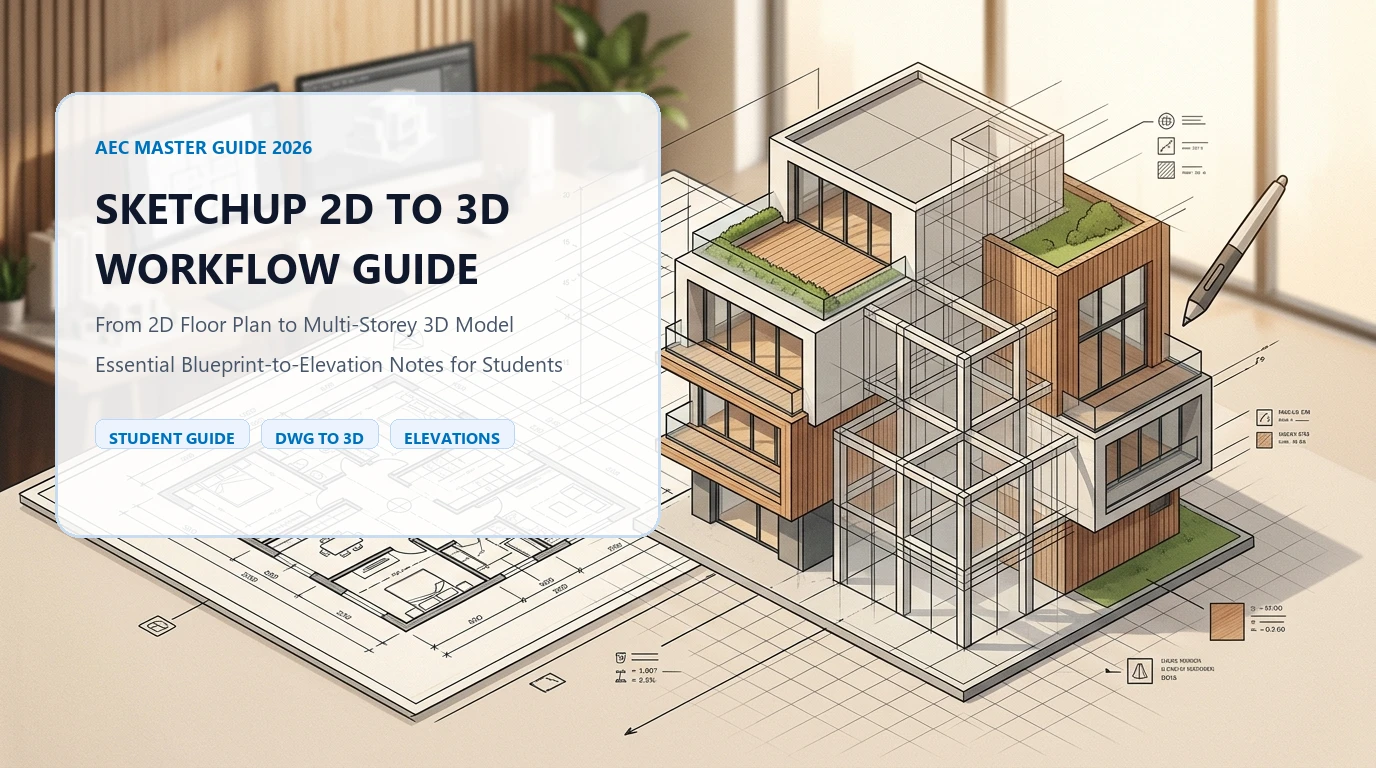
Answer-First Summary
Quick answer
Learn the complete 2D floor plan to 3D SketchUp model workflow used in Indian design studios. From DWG/DXF import to multi-storey elevation — a practical guide for architecture and civil engineering students in 2026.
- Is SketchUp the right tool for architecture students in India? Yes. SketchUp is the most widely used rapid massing and design development tool in Indian residential and commercial design studios. Nearly every Bangalore-based architect uses SketchUp for early-stage visualization before producing structural drawings. Learning SketchUp gives you an immediate practical edge in internships and jobs.
- How do I convert a 2D DWG floor plan to a 3D SketchUp model? The standard workflow is: 1) Import the DWG or DXF file into SketchUp at the correct scale, 2) Trace or detect walls and openings on a clean CAD layer, 3) Use a wall-generation tool to push the 2D linework into editable 3D geometry, 4) Add doors, windows, slabs, and roofs, 5) Stack multiple floors using an elevation tool. Tools like LizArk by Lizatek automate steps 2–5 in a single command.
SketchUp for Architecture & Civil Engineering Students: 2D Plan to 3D Workflow Guide (2026)
Guest article by the Lizatek Engineering Team — creators of LizArk, the SketchUp architectural automation suite. Hosted on Liza Homes Learning, Bengaluru’s civil engineering resource hub.
If you are a civil engineering or architecture student in India in 2026, there is one skill that will get you hired faster than almost anything else: the ability to take a 2D floor plan and turn it into a presentation-ready 3D model within hours.
Every design studio in Bangalore, Chennai, Hyderabad, and Mumbai runs on this workflow daily. The principal architect hands a junior a DWG file at 9 AM and expects a 3D walkthrough by 3 PM. If you can do that confidently — you become essential on day one of your internship.
This guide walks you through the complete workflow, from raw DWG to multi-storey SketchUp model, including the tools that make it fast.
Why SketchUp Dominates Indian Design Studios
Before we get into the workflow, it is worth understanding why SketchUp — and not Revit, AutoCAD 3D, or ArchiCAD — remains the tool of choice for residential and commercial design in India.
| Reason | Detail |
|---|---|
| Speed of massing | A trained SketchUp user can model a G+2 villa faster than any other tool |
| Low learning curve | Students can become productive in 2–3 weeks vs. 3–6 months for Revit |
| Extension ecosystem | Thousands of Ruby extensions for everything from structural grids to rendering |
| Client presentation | Scenes, walkthroughs, and shadow studies work out of the box |
| Industry adoption | The majority of residential architects in Tier 1 Indian cities use SketchUp |
The limitation is that SketchUp is a manual modeler by default — you push and pull geometry yourself. This is fine for simple forms, but for a full residential project with 20+ rooms, custom openings, slabs, roofs, and staircases, manual modeling becomes the bottleneck.
That is where automation tools change the game.
Phase 1: Setting Up Your SketchUp Workspace
Before importing any plan, set up SketchUp correctly:
1.1 Units & Template
- Go to Window → Model Info → Units
- Set to Decimal — Millimeters (standard for Indian architectural drawings)
- Use the Architectural Design — Millimeters template
1.2 Layer / Tag Structure
Create these tags before modeling:
| Tag Name | Purpose |
|---|---|
IMPORT_CAD | Lock the imported DWG reference here |
WALLS_GF | Ground floor wall geometry |
WALLS_FF | First floor wall geometry |
OPENINGS | Doors, windows, ventilators |
SLABS | Floor and roof slabs |
PRESENTATION | Final scene components |
This structure keeps the model clean and allows you to toggle floors independently — critical for multi-storey presentations.
1.3 Extensions to Install
Install these from the Extension Warehouse before starting:
- LizArk by Lizatek — 2D-to-3D automation, wall generation, openings, elevation stacking
- CleanUp³ — Remove duplicate geometry and fix normals
- Solid Inspector — Ensure walls are manifold before rendering
- V-Ray / Enscape / D5 Render — Rendering (install whichever your studio uses)
Phase 2: Importing & Preparing the 2D Floor Plan
This is where most students waste the most time. A poorly prepared DWG import will cost you hours of cleanup later.
2.1 Cleaning the DWG Before Import
In AutoCAD or a DWG viewer before importing:
- Purge all unused blocks, layers, and linetypes (
PURGE ALL) - Flatten the drawing to Z=0 (
FLATTENcommand) - Separate by floor — each floor plan should be its own DWG file
- Check the scale — confirm the drawing is at 1:1 in model space (a 30-foot wall should measure 9144mm)
- Delete annotations — dimensions, text, hatch patterns, title blocks
2.2 Importing into SketchUp
- Go to File → Import → select your cleaned DWG file
- In import options: Merge coplanar faces OFF, Orient faces consistently ON
- After import, place the plan on the
IMPORT_CADtag and lock it - Scale-check: use the Tape Measure tool to confirm a known dimension
Common mistake: Students import a DWG and start modeling on top of it without locking the reference layer. One accidental click later, the plan has moved and the model is offset by 2 metres.
Phase 3: Generating 3D Walls & Openings
This is the most time-intensive phase if done manually. For a standard 2BHK (approx. 1,200 sq ft), manually tracing walls, extruding to floor height, and cutting openings takes 3–5 hours.
3.1 The Manual Method
- Trace the outer wall boundary with the Rectangle/Line tools on the
WALLS_GFtag - Use Push/Pull to extrude walls to floor-to-slab height (typically 2,700mm–3,000mm for residential)
- Draw door and window openings on wall faces and use Push/Pull to cut through
- Add internal partition walls following the same process
- Add a floor slab (Rectangle → Push/Pull 150mm downward from floor level)
This works, but it is slow, and openings are notoriously tedious — especially for non-rectangular windows and corner glass configurations.
3.2 The Automated Method — LizArk
LizArk by Lizatek changes this workflow entirely. Here is how it works with your imported DWG:
- Prepare the plan — map wall layers and opening layers in LizArk’s layer panel
- Detect walls — LizArk reads the CAD linework and identifies wall paths automatically
- Generate 3D — one click builds extruded walls at your target height with correct thickness
- Place openings — doors, windows, corner windows, ventilators, and panels are placed from a parametric library directly on wall faces
- Add slabs — floor and roof slabs are generated from detected room boundaries
For a standard G+1 residential project, this reduces wall and opening generation from 4–5 hours to under 30 minutes.
LizArk also handles:
- Multi-storey elevation stacking via the To Elevation command — detects floor plans and stacks them into an organized multi-story model preserving level data
- Parametric floor generator for tile and wood floor patterns
- Road design tools for site plans and layout drawings
💡 Liza Homes site note: On actual construction projects in Bengaluru, our design coordination team uses SketchUp models to communicate between the architect, structural engineer, and site supervisor. A clean, organized SketchUp model with correct floor heights and opening positions reduces RFIs (Requests for Information) on site by a significant margin.
Phase 4: Roof, Stairs & Site Elements
4.1 Roof Modeling
For a typical Indian residential roof:
- Flat RCC slab: Rectangle + Push/Pull 150mm, add parapet walls at 900mm height
- Sloped roof: Use the Roof from Footprint approach — draw eave lines, use the Line tool to create ridge geometry, then push/pull hip faces
4.2 Staircases
Staircases are complex in SketchUp. The quickest approach for students:
- Calculate: Rise = 150mm, Tread = 300mm, for 3000mm floor height = 20 steps
- Draw one tread + riser profile on a vertical face
- Use the Move/Copy tool with
/19to create 19 more copies in one command - Add a landing slab at mid-level
4.3 Site Elements
Add the site boundary, driveway, garden, compound wall, and approach path on the PRESENTATION tag. These greatly improve client visualizations but clutter the working model — keeping them on their own tag lets you toggle them off.
Phase 5: Multi-Storey Elevation & Stacking Floors
This is where many students get confused — how to take separate ground floor and first floor plans and combine them into a single coherent 3D building.
Manual Method
- Model GF in position
- Import or paste FF plan above at Z = floor-to-floor height (e.g., 3300mm)
- Model FF walls aligned to the plan
- Check alignment: GF and FF external walls should be flush on the same face
Using LizArk’s To Elevation
LizArk’s To Elevation command detects organized 2D floor plans arranged side-by-side (a common layout in Indian working drawings — GF plan and FF plan side by side on the sheet) and:
- Automatically detects each floor
- Stacks them at the correct Z heights
- Preserves layer organization per floor
This is particularly valuable for G+2 and G+3 bungalows which are common in Bengaluru’s independent villa market.
Learn more about the DWG-to-3D SketchUp automation workflow on the Lizatek blog.
Phase 6: Scenes, Shadows & Presentation Output
A model without a good presentation is wasted work. Set up Scenes for client review:
| Scene Name | Camera Position | Style |
|---|---|---|
EXT_FRONT | Eye-level, facing front elevation | Realistic |
EXT_AERIAL | 45° above, South-West corner | Realistic |
INT_LIVING | Interior, standing height, facing feature wall | Realistic |
INT_MASTER | Master bedroom, looking toward window | Realistic |
FLOORPLAN_GF | Top-down, Section cut at 1200mm | Technical |
For each scene:
- Set Shadows to 10:00 AM on a winter date (Dec 21) to show good shadow play for south-facing elevations
- Use Fog subtly to add depth for exterior shots
- Export at 2x Document Size for print-quality images
SketchUp Skill Checklist for Indian Design Firms
Use this before your next interview or internship application:
- Import & scale a DWG plan correctly in SketchUp
- Generate 3D walls from 2D plan linework (manual or automated)
- Place doors, windows, and openings with correct dimensions
- Add floor slabs and roof with correct heights
- Stack multiple floors into a multi-storey building
- Set up organized Tags/Layers per floor
- Create Scenes for at least 3 presentation views
- Set shadow angle and date for realistic exterior renders
- Export a walkthrough animation (even a basic one via Scenes + Export Animation)
- Use at least one rendering plugin (V-Ray, Enscape, or D5 Render)
Tools Reference
| Tool | Purpose | Cost |
|---|---|---|
| SketchUp Pro | Core modeling environment | Paid (student license available) |
| LizArk by Lizatek | 2D-to-3D automation, walls, openings, elevation stacking | Free 7-day trial, then paid |
| CleanUp³ | Model cleanup and geometry repair | Free |
| V-Ray for SketchUp | High-quality photorealistic rendering | Paid |
| Enscape | Real-time rendering & VR walkthroughs | Paid (student license) |
| D5 Render | Fast AI-assisted rendering | Free tier available |
| Solid Inspector | Manifold geometry checking | Free |
Practice This Workflow on a Real Bangalore Project
At Liza Homes, we build turnkey homes across Bengaluru. If you want to practice this 2D-to-3D workflow on actual residential drawings — or are looking for an internship where SketchUp skills are used daily on real construction projects — reach out to our team.
About the Author
This article was written by the Lizatek Engineering Team — the developers behind LizArk, a SketchUp architectural automation suite that converts 2D floor plans into editable 3D building models in one click. Lizatek tools are used by architects and design studios across India, the Middle East, and Europe to accelerate SketchUp workflows for residential and commercial projects.
Hosted on Liza Homes Learning — civil engineering and construction resources for students and professionals in Bengaluru.
Author and verification
Written by Lizatek Engineering Team. Reviewed by Liza Homes Technical Team on September 11, 2026 .
This guide cites the following primary references:
Career & Site Support
Are you a student looking for internship guidance, site visit permissions, or professional engineering support in Bengaluru? Our team is here to help.
Enquire Now 👋